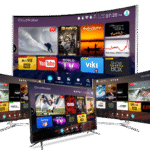
Roku is one of the most popular streaming devices in North America, but setting up IPTV on it is slightly different from Firestick or Android boxes — because Roku’s closed OS doesn’t allow direct APK installs. This guide covers all available methods for getting IPTV working on your Roku device in 2026, including the best private channels and workarounds.
What You’ll Need
- Any Roku device (Roku Streaming Stick, Roku Ultra, Roku Express, Roku TV)
- A Roku account (free at roku.com)
- Stable internet — 25 Mbps for HD, 50 Mbps for 4K
- Your Smart4KCC M3U URL or Xtream Codes credentials
- A computer or phone to set up private channels (for Method 2)
Method 1: The Roku Channel Store (Direct Install)
Roku’s official Channel Store has limited IPTV app support, but there are a few options available directly:
- From your Roku Home screen, navigate to Streaming Channels.
- Use the search function and type “IPTV”.
- Look for available IPTV players — options include Channels App, Pluto TV (free, ad-supported), or any M3U-compatible channel available in your region.
- If an M3U-compatible app appears, install it and enter your Smart4KCC credentials.
Note: The Roku Channel Store selection varies by country. US and UK users have more options than other regions.
Method 2: Add a Private Channel (Access Code)
Private channels on Roku aren’t listed in the public store but can be added via an access code. Several IPTV-compatible Roku private channels exist. Here’s how to add one:
- On your computer or phone, go to my.roku.com and log in to your Roku account.
- Click Add Channel in the top navigation.
- Enter the private channel access code (for example, the IPTV M3U Player channel uses the code IPTVM3U — check Roku forums for current active codes as these change).
- Click Add Channel and confirm.
- On your Roku device, go to Settings → System → System Update and select Check Now to force the channel to appear.
- Open the newly added channel, navigate to settings, and enter your Smart4KCC M3U URL.
Method 3: Screen Mirroring From Android (Best Workaround)
If you can’t find a suitable IPTV app on Roku, screen mirroring from an Android phone or tablet gives you a full IPTV experience on your TV via Roku. This works on any Roku device.
- On your Roku, go to Settings → System → Screen Mirroring and set it to Always Allow or Prompt.
- On your Android phone, install IPTV Smarters Pro or TiviMate from the Play Store and enter your Smart4KCC credentials.
- Open the Android notification shade, tap Cast or Screen Cast, and select your Roku device.
- Your Android screen mirrors to the TV. Open your IPTV app — it now displays full-screen on the TV.
This method works well but does drain your phone’s battery. Keep it plugged in during long viewing sessions.
Method 4: Use a Firestick or Android Box Instead
Roku’s closed ecosystem makes IPTV more complex than it needs to be. If you find the workarounds above cumbersome, the simplest solution is to plug an Amazon Firestick or Android TV box into a spare HDMI port on your TV. Both offer native IPTV app support with no restrictions.
Best IPTV Options for Roku in 2026
| Method | Ease of Setup | Full Channel Access | Best For |
|---|---|---|---|
| Official Channel Store | Easy | Limited | Casual viewers |
| Private Channel Code | Medium | Yes (M3U) | Tech-comfortable users |
| Android Screen Mirror | Medium | Full | Android phone owners |
| Firestick via HDMI | Easy | Full | Best overall experience |
Troubleshooting Roku IPTV Problems
Private channel not appearing after adding
After adding a private channel via my.roku.com, you must force a system update on the Roku device. Go to Settings → System → System Update → Check Now. The new channel should appear within 60 seconds.
Screen mirroring has lag or stuttering
Screen mirroring quality depends on your WiFi network. Ensure both your Roku and Android phone are on the same WiFi network, preferably 5GHz. Closing all other apps on your phone before mirroring also significantly reduces lag.
M3U channel code expired or not working
Roku private channel codes are sometimes discontinued by Roku without notice. Check the Roku subreddit (r/Roku) for currently active M3U player channel codes. The IPTV community keeps an up-to-date list of working codes.
Frequently Asked Questions
Can I get IPTV on Roku?
Yes, but with more steps than on Firestick or Android TV. Roku’s closed OS doesn’t allow direct APK installs, so you need to either use a Channel Store app, add a private channel via an access code, use Android screen mirroring, or plug a Firestick into a spare HDMI port.
Does Smart4KCC work on Roku?
Smart4KCC works on Roku via M3U-compatible private channels or Android screen mirroring. For the easiest Roku experience, we recommend using a Firestick alongside your Roku on a separate HDMI input — it gives you full Smart4KCC access with no limitations.
What is the best IPTV app for Roku?
The best IPTV solution for Roku in 2026 is adding an M3U-compatible private channel via my.roku.com. Among available options, look for “IPTV Smarters” or “M3U Player” private channel codes on current Roku community forums, as these are regularly updated.
Is Firestick better than Roku for IPTV?
Yes. For IPTV specifically, Amazon Firestick is significantly better than Roku. Firestick runs Android-based Fire OS, which supports full APK installation and all major IPTV apps natively. Roku’s closed OS makes IPTV setup more complicated. If IPTV is your primary use case, a Firestick is the better investment.
Ready to start? Get your free Smart4KCC trial → Works on Roku, Firestick, Smart TV, and more.