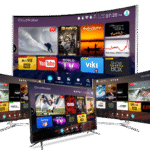
Apple TV is one of the smoothest IPTV experiences you can get in 2026. With tvOS’s polished interface and powerful hardware, streaming 32,000+ channels in 4K HDR on your Apple TV takes less than 10 minutes to set up. This guide walks you through every method — from the App Store to sideloading — with full troubleshooting.
What You’ll Need
- Apple TV 4K (2nd generation or later) or Apple TV HD
- A TV with HDMI input
- Stable internet — 25 Mbps for HD, 50 Mbps for 4K
- An Apple ID (free)
- Your Smart4KCC M3U URL or Xtream Codes credentials
Best IPTV Apps for Apple TV in 2026
| App | App Store | Supports M3U | Supports Xtream Codes | Cost |
|---|---|---|---|---|
| IPTV Smarters Pro | Yes | Yes | Yes | Free |
| GSE Smart IPTV | Yes | Yes | Yes | Free (Pro: $2.99) |
| Infuse 7 | Yes | Yes (via M3U import) | No | Free + Pro sub |
| OTT Navigator | Yes | Yes | Yes | Free |
Method 1: Install IPTV Smarters Pro (Recommended)
Step-by-Step Setup
- Open the App Store on your Apple TV (top row of the Home screen).
- Search for “IPTV Smarters Pro” and select it from the results.
- Click Get to download and install (it’s free).
- Once installed, open the app from your Home screen.
- On the welcome screen, choose your login method:
- Login with Xtream Codes API — enter your Smart4KCC server URL, username, and password.
- Load your Playlist / M3U URL — paste your M3U URL from your Smart4KCC welcome email.
- Give your profile a name and tap Add User.
- Wait 30–60 seconds for your channel list and VOD library to load.
- Browse by category — Live TV, Movies, Series, Sports — and start watching.
Method 2: GSE Smart IPTV
GSE Smart IPTV is a solid alternative with excellent Apple TV remote support and a clean two-column layout optimised for living room viewing.
- Download GSE Smart IPTV from the App Store.
- Open the app and go to Remote Playlists.
- Tap the + button and choose Add M3U URL or Xtream Codes.
- Enter your Smart4KCC credentials and tap Add.
- Your channels load automatically — tap any channel to start streaming.
Tips for the Best Apple TV IPTV Experience
- Use ethernet via the Apple TV’s LAN port (Apple TV 4K has a built-in ethernet port) for maximum stability — especially for 4K sports streams.
- Enable HDR in Apple TV settings — go to Settings → Video and Audio → Format → select 4K HDR. Smart4KCC’s 4K channels will automatically match this output.
- Add channels to favourites — in IPTV Smarters, long-press any channel to add it to your favourites list for one-click access.
- Enable EPG — the electronic programme guide shows what’s on now and next. In IPTV Smarters, go to Settings → EPG Settings to ensure it’s enabled and auto-refreshing.
- Use the Siri Remote shortcut — on Apple TV 4K, click the TV button once to return to the channel list without losing your position.
Troubleshooting Apple TV IPTV Problems
Channels not loading after entering credentials
Double-check that you copied the M3U URL in full — it’s easy to accidentally cut off the end when copying on Apple TV’s on-screen keyboard. Use your iPhone as a keyboard: when the on-screen keyboard appears on Apple TV, your iPhone should show a notification to type instead. This makes entering long URLs much easier.
Buffering on Apple TV
Apple TV 4K has an ethernet port — use it. If you’re using WiFi, go to Settings → Network and ensure you’re connected to the 5GHz band rather than 2.4GHz. Also check that no other devices are streaming simultaneously on your network. See the full IPTV buffering fix guide →
App crashes on launch
On Apple TV, delete and reinstall the app: go to the Home screen, long-press the app icon, select Delete App, then reinstall from the App Store. Also ensure your tvOS is up to date: Settings → System → Software Updates.
Black screen on some channels
This is usually a codec compatibility issue. In IPTV Smarters, try switching the player type in Settings → Player Settings. GSE Smart IPTV generally handles a wider range of stream formats on tvOS — try it as an alternative if one app consistently shows black screens.
Frequently Asked Questions
Can I use IPTV on Apple TV?
Yes. IPTV works on all Apple TV models (Apple TV HD and Apple TV 4K) via apps available on the tvOS App Store, including IPTV Smarters Pro, GSE Smart IPTV, and OTT Navigator.
What is the best IPTV app for Apple TV?
IPTV Smarters Pro is the best IPTV app for Apple TV in 2026. It’s free, supports both M3U and Xtream Codes, has a smooth tvOS interface, and handles 4K HDR streams natively.
Does Smart4KCC work on Apple TV?
Yes. Smart4KCC is fully compatible with Apple TV via IPTV Smarters Pro and GSE Smart IPTV. After subscribing you receive M3U and Xtream Codes credentials that work immediately on Apple TV.
Do I need Apple TV 4K for IPTV?
No — IPTV works on Apple TV HD as well. However, Apple TV 4K is recommended if you want to watch 4K streams, as it has the processing power and display output to handle 4K HDR content smoothly.
Ready to start? Try Smart4KCC free on your Apple TV → No credit card required.